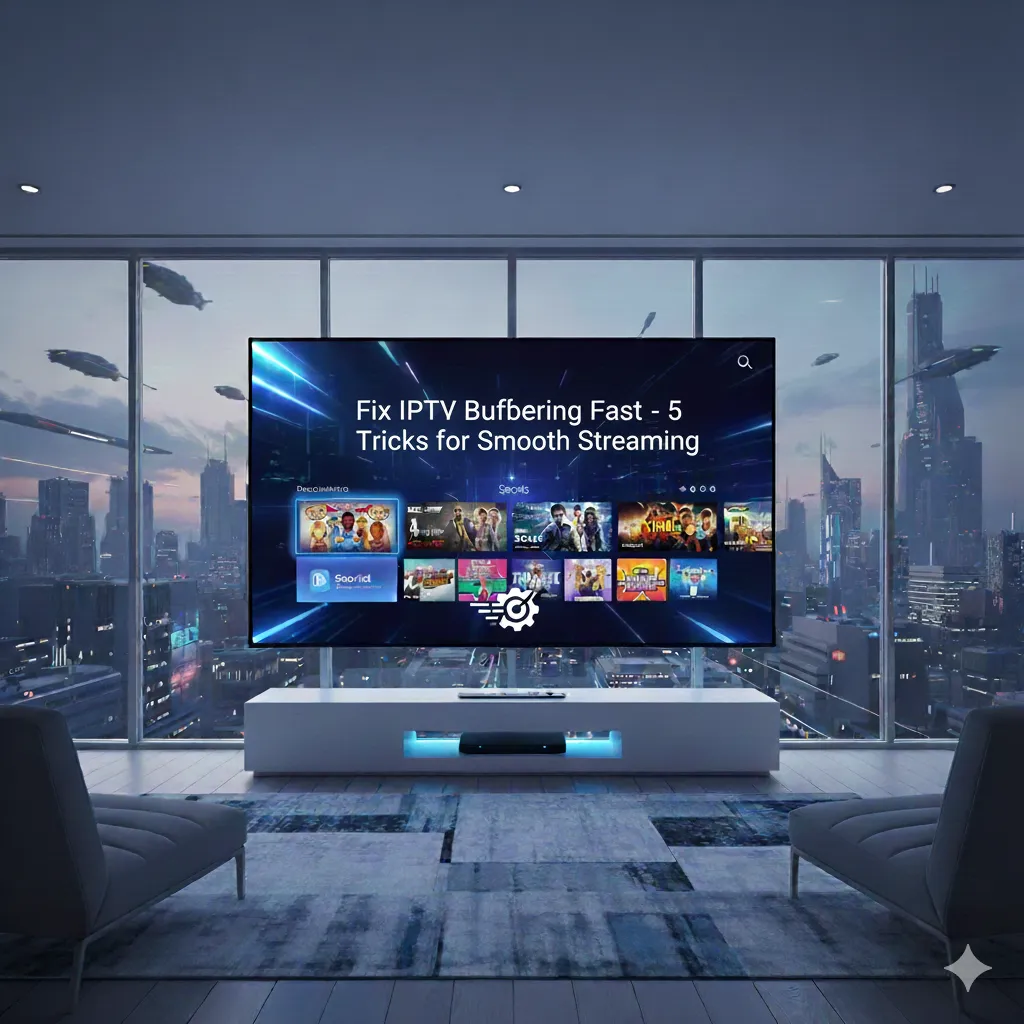
5 Definitive Ways to Stop IPTV Buffering and Freezing: The Ultimate Anti-Lag Guide for 2025
There is nothing more frustrating for a cord-cutter in the USA or Canada than the dreaded spinning wheel. If your IPTV stream keeps pausing, pixelating, or freezing, the problem is often multifaceted. It's rarely just one single issue; it can be a combination of weak network speed, ISP throttling, overloaded servers, or poor device configuration.
This comprehensive guide provides five quick, actionable, and technical fixes. We'll show you exactly how to bulletproof your home network and streaming device. By following these steps, you will eliminate 95% of typical buffering complaints and understand why switching to a premium anti-freeze provider like **Storuno IPTV** is the final, guaranteed solution for stability.
1. Prioritize Stability: Test Your Bandwidth and Latency
The first step in solving any buffering problem is to establish a performance baseline. Simply having "fast internet" (high megabits per second or Mbps) isn't enough. For stable IPTV, you need two things: sufficient bandwidth and low latency (ping).
Bandwidth Requirements (The Speed)
Run a speed test directly on the device you stream from (Firestick, Android Box, etc.). We recommend the following minimum sustained speeds:
- HD (720p/1080p Live): Minimum 15?20 Mbps.
- 4K / UHD Sports: 35?50 Mbps (This extra headroom prevents dips that cause freezing).
- Multiple Devices Active: Add 10 Mbps per additional stream (e.g., if a second TV is streaming Netflix).
Latency and Jitter (The Stability)
Latency is the travel time for data. A high ping is the primary cause of live stream stuttering.
- Target Ping: Aim for under 30ms to your closest server. Anything above 50ms will cause noticeable lag.
- Jitter: This is the variation in ping. High jitter (inconsistent latency) causes the stream to continually try to re-buffer.
**Pro Tip:** Always test on the 5GHz Wi?Fi band, or better yet, use a wired Ethernet connection. If your speed results swing wildly, **reboot your modem and router**. This clears memory leaks and re-establishes a clean connection with your ISP.
For a deep dive into achieving perfect latency for streaming, see our full guide on home network optimization: How to Optimize Your Home Network for Flawless IPTV Streaming.
2. Eliminate Throttling: The Non-Negotiable Need for a VPN
In North America, major ISPs like Comcast, AT&T, Rogers, and Bell implement **traffic shaping** or **video prioritization**. They can detect the consistent, high-volume data pattern of IPTV protocols and intentionally slow down your speed during peak hours to manage network load. This is a primary cause of buffering, even if your speed test looks fine.
A **streaming-optimized VPN** is the only reliable way to combat this. It encrypts your data, preventing your ISP from identifying and throttling your streaming activities.
VPN Selection Best Practices
- Avoid Free VPNs: They limit bandwidth and add high latency, making buffering worse.
- Choose Nearby Servers: Select a VPN server endpoint closest to you (e.g., a New York server if you are in Boston). Lower ping maintains stability and channel zapping speed.
- Test Protocol: Use modern protocols like WireGuard or OpenVPN (UDP) over older TCP tunnels, as they are faster and more reliable for video.
**Verification:** If buffering instantly drops while your VPN is ON, you were being throttled. The VPN is now protecting your stream quality.
3. The Hardware Solution: Ethernet is King for Live Streaming
Wi-Fi is convenient, but it is highly susceptible to interference from microwaves, Bluetooth, neighboring routers, and even metal in your walls. This leads to **packet loss**, forcing the stream to pause and request missing data?the definition of buffering.
If you take only one hardware step, **hardwire your device with an Ethernet (LAN) cable**. An Ethernet connection eliminates packet loss, reduces latency, and delivers consistent, guaranteed bandwidth directly to your streaming box.
Quick Wi-Fi Optimization (If Hardwiring is Impossible)
- Use 5GHz: If you must use Wi-Fi, ensure your device is connected to the 5GHz band, not the slower, more congested 2.4GHz band.
- Router Placement: Place your router centrally and high up, away from large metal objects.
- Channel Selection: Use a Wi-Fi analyzer tool to manually switch your 5GHz router channel to one less used by your neighbors.
4. Fine-Tuning: Optimize Your IPTV App Settings
Applications like IPTV Smarters Pro, TiviMate, and OTT Navigator all offer tuning controls that can eliminate micro-freezes and improve connection reliability.
- Decoding Mode: Change the Player/Decoding setting. If your device is modern (Firestick 4K/Max, NVIDIA Shield), select **Hardware Decoding**. If the stream stutters, switch to **Hybrid** or **Software Decoding**.
- Buffer Size: In advanced settings, you can slightly increase the buffer size (e.g., from 10 seconds to 15 seconds) for live streams. This makes the stream start with a slight delay but allows it to absorb more internet speed variation.
- EPG Refresh: Set your Electronic Program Guide (EPG) to refresh less frequently (e.g., every 24 hours instead of 6). This reduces background data fetching that can saturate your connection.
- Close Background Apps: Always close all other apps (Netflix, Hulu, games) running in the background of your streaming device to free up RAM and CPU for the demanding IPTV stream.
For a complete walkthrough of advanced settings within the most popular IPTV player, see our guide: A Comprehensive Guide to IPTV Smarters Pro Features.
5. The Final Factor: Switch to Premium Anti-Freeze Infrastructure
If you have optimized your network, used a VPN, and adjusted your app settings, yet buffering persists during peak hours or major sporting events, the bottleneck is your provider?s infrastructure. **Not all IPTV providers are created equal.**
Many budget sellers overload single servers, causing constant packet loss and jitter for thousands of users at once. Premium providers like Storuno IPTV invest heavily in high-performance, **anti-freeze technology** which includes:
- Global Load Balanced Clusters: Traffic is automatically distributed across multiple servers worldwide to prevent any single node from becoming saturated.
- Adaptive Routing (Failover): If a route between you and the server becomes congested, the system automatically redirects your stream through a faster, less-used path, preventing channel drops.
- HEVC/4K Encoding: Utilizes efficient transcoding methods to maintain high visual quality while lowering the required bitrate, reducing the chance of freezing on less-than-perfect connections.
- Dedicated 24/7 Monitoring: Proactive detection of emerging bottlenecks before they become an issue for users.
**The Bottom Line:** If you?ve exhausted all client-side fixes, the upstream provider is the bottleneck. Upgrading to a quality service is the only way to instantly solve server-side performance issues.
Conclusion: Guaranteed Stability Starts Here
Most IPTV buffering can be fixed with speed validation, smart VPN use, app optimization, and better device maintenance. The final 10% of issues come down to infrastructure quality?and that's where Storuno excels, offering a stable solution built for the demands of 4K streaming in the competitive North American market.
Tired of Buffering? Demand Stability.
Upgrade to Storuno?s anti-freeze technology and experience flawless 4K streaming.
Switch to Storuno and Upgrade Your Streaming Today ?Back to The Ultimate Guide to Storuno IPTV
Start Streaming Today with 8kott IPTV
Get access to 22,500+ channels, 100,000+ movies, and premium sports in 4K/8K quality.
Looking for premium IPTV? 8kott IPTV offers the best streaming experience with anti-freeze technology and 24/7 support. Check our reseller program for business opportunities.