8KOTT IPTV Installation Tutorial
Recommended player
Set up VioxaPlayer on Android and Fire TV
If you are choosing a player for your Android phone, Android TV box, or Fire TV Stick, we recommend trying VioxaPlayer first. It is a dedicated media player with support for live TV, EPG and catch-up features, 4K playback, and multi-screen use. Smarters Pro is another player option, but VioxaPlayer is the first app we suggest testing on a compatible device.
- Install Downloader from the Play Store or Amazon Appstore.
- Allow Downloader to install applications from unknown sources in your device settings.
- Use the official VioxaPlayer installation guide for your device and download the current app version from the official website.
- Open the player, complete the pairing steps, and add only a playlist or service you are authorized to use.
Quick Downloader codes: enter 1816061 for Firestick / Fire TV, 6034224 for Android TV boxes (Nvidia Shield, Mi Box, X96…), or 9892154 for the Android phone/tablet APK. On mobile you can also install directly from Google Play.
VioxaPlayer is a media player and does not provide channels or playlists. Always use content and subscriptions where you have the necessary rights and permissions.
Note: To access our IPTV service, you can install any app or player. In this beginner's tutorial, we will provide examples using the IPTV smarter app ( free app), Ibo Player app and the Tivimate app.
How to setup IPTV Smarter on Fire TV Stick
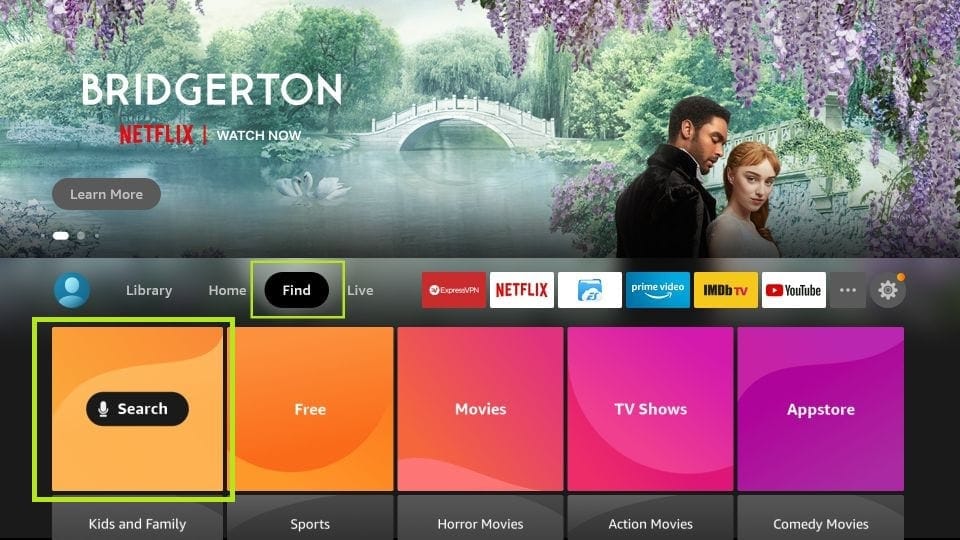
From the home screen of your device, hover over the Find option.
1. We will first install the Downloader app
This app will help you sideload IPTV Smarter on FireStick (because browser downloads are not allowed)
2. Click the Find > Search option on the home screen of FireStick
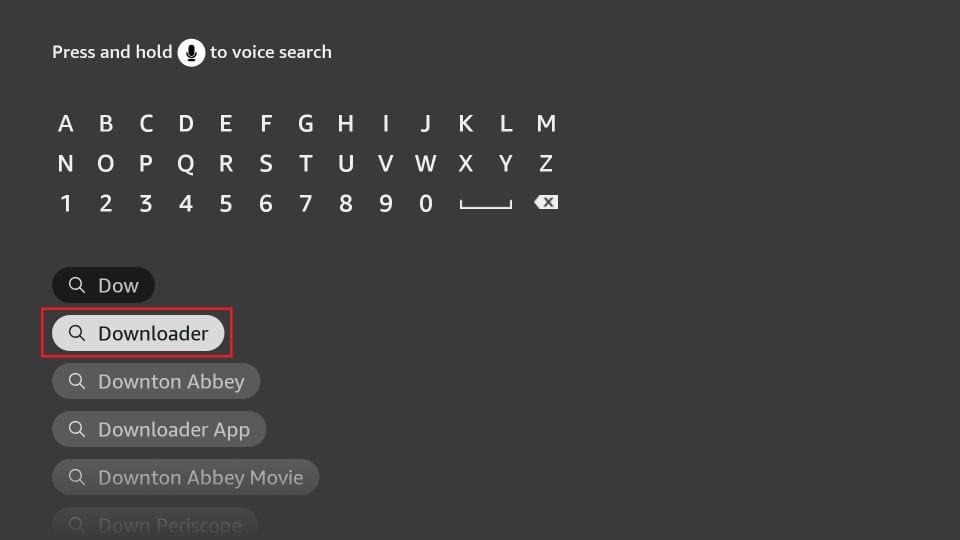
3. Type the name of the app (which is Downloader)
Click the Downloader option when it is displayed in the search results
Choose the Downloader icon on the following screen and download and install the app
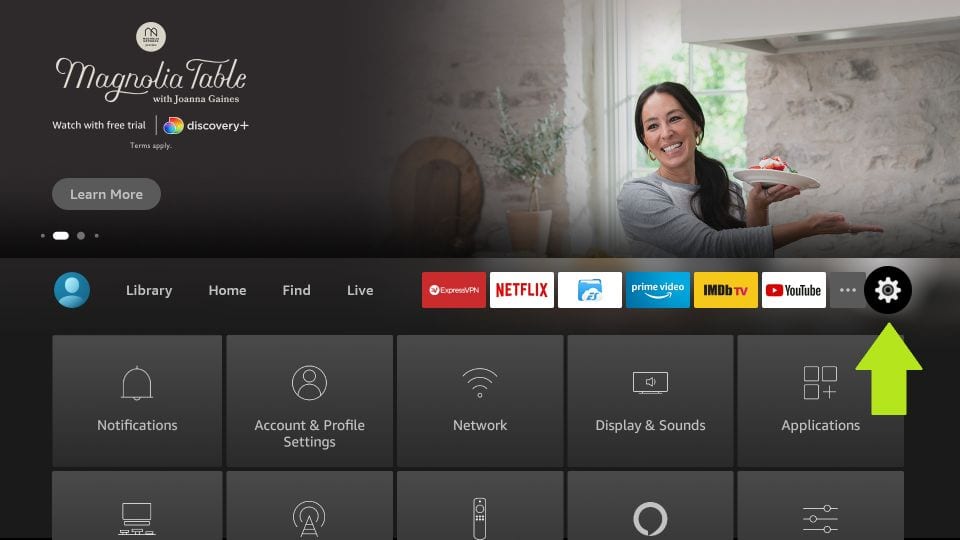
4. Get back to the home screen of FireStick after installing the Downloader app
In the menu bar, click Settings
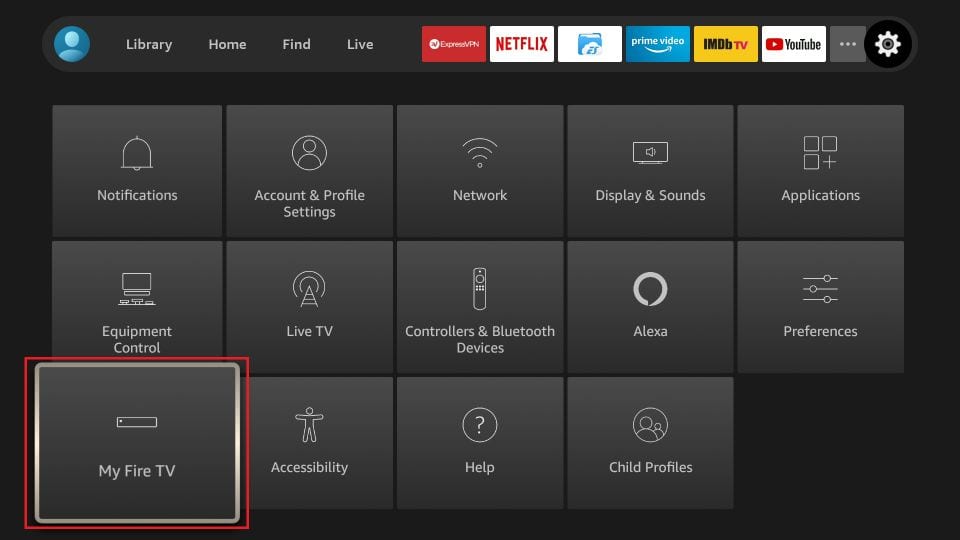
5. In the Settings, choose the option My Fire TV
6. When the following set of options are displayed on the next screen, click Developer Options
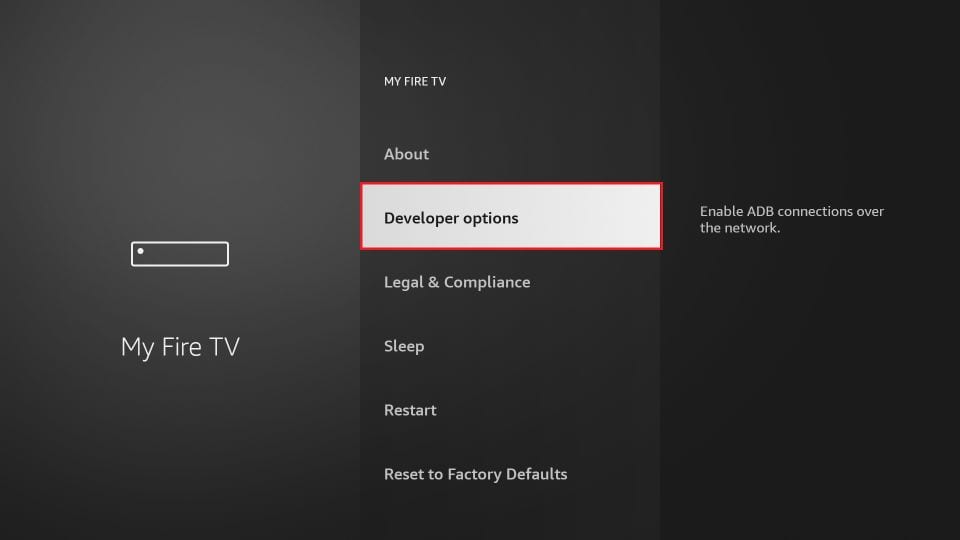
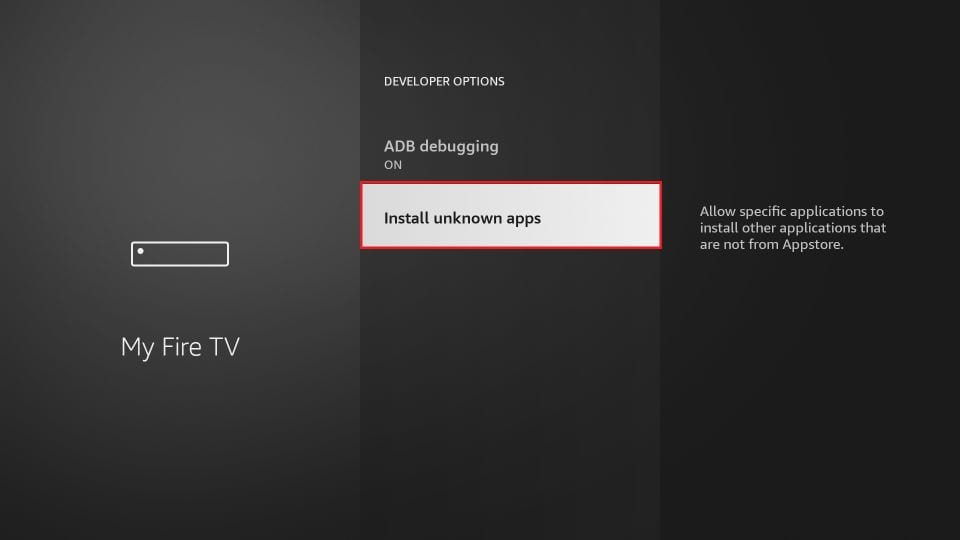
7. Click Install from unknown apps
8. Click Downloader to change the status to ON
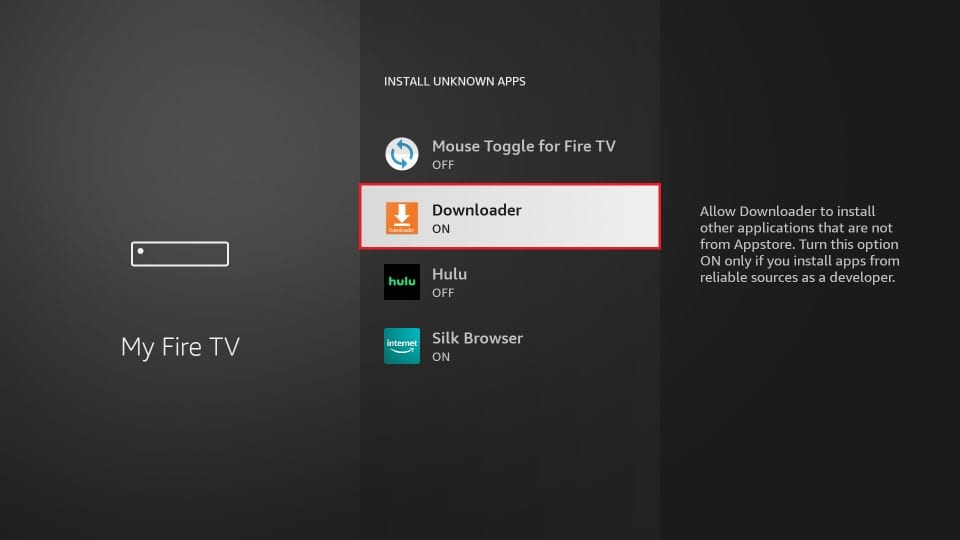
With this, you have configured the FireStick settings to allow the installation of IPTV Smarters and other third-party apps. Follow the steps below:
9. You may now open the Downloader app
When you run this app for the first time, a set of prompts will appear. Dismiss them until you see the following screen
On this screen, you need to click the URL textbox on the right side (make sure Home option in the left menu is selected) where it says ‘http://’
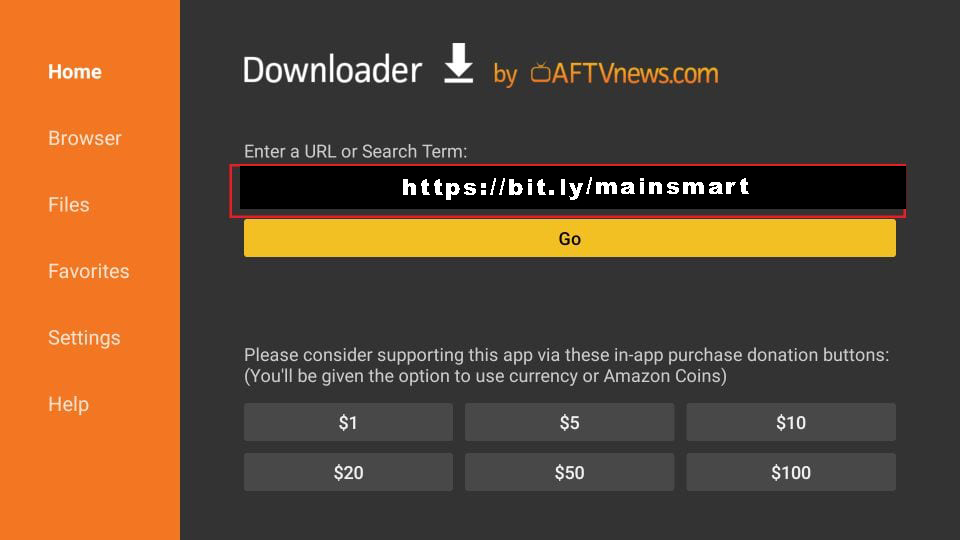
10. Go ahead and enter the following path on this window: https://bit.ly/mainsmart
Click GO
11. Give it a minute or two until the IPTV Smarter is downloaded onto your FireStick device
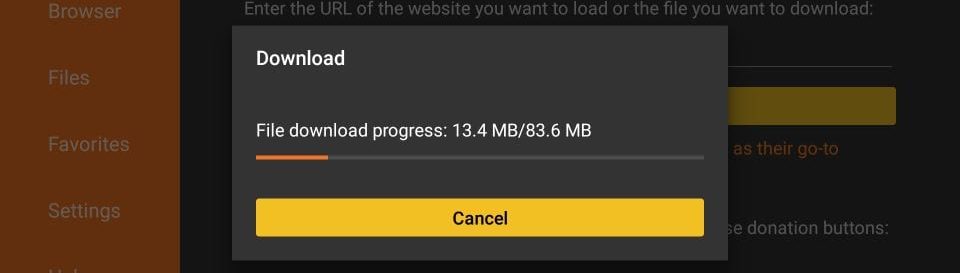
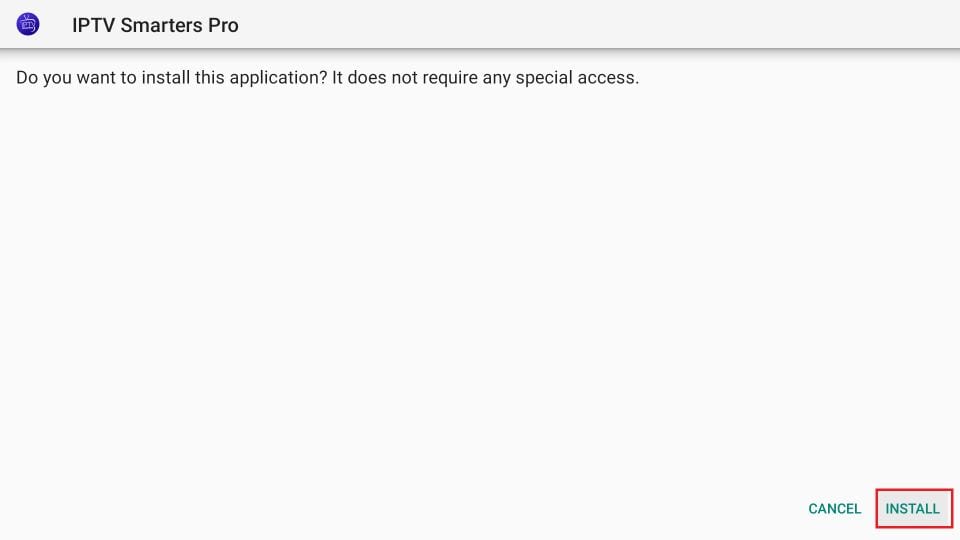
12. When the download has completed, the Downloader app will run the APK file and the installation will start
Click Install
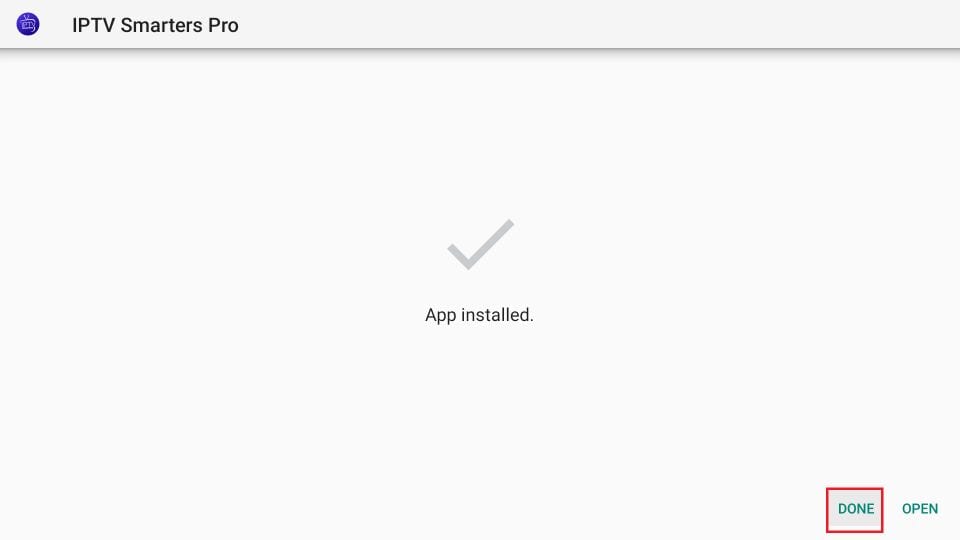
13. Wait for the installation to finish
14. Installation is concluded with the App installed notification
You may now choose to click OPEN and get started with IPTV Smarters
I recommend choosing DONE so that you may first delete the APK file and save some space on the FireStick storage
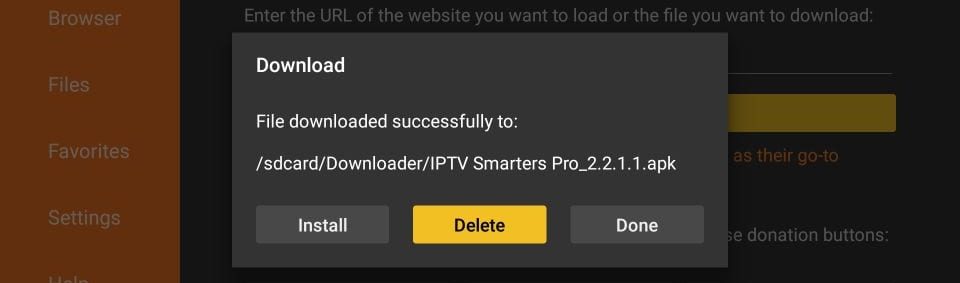
15. If you clicked DONE above, you will be back on the Downloader interface
Click Delete
Great! You now have the IPTV Smarters app on FireStick.
Launch IPTV Smarters on Firestick either by going to Your Apps & Channels section or pressing & hold the Home button and then select Apps from the next screen.
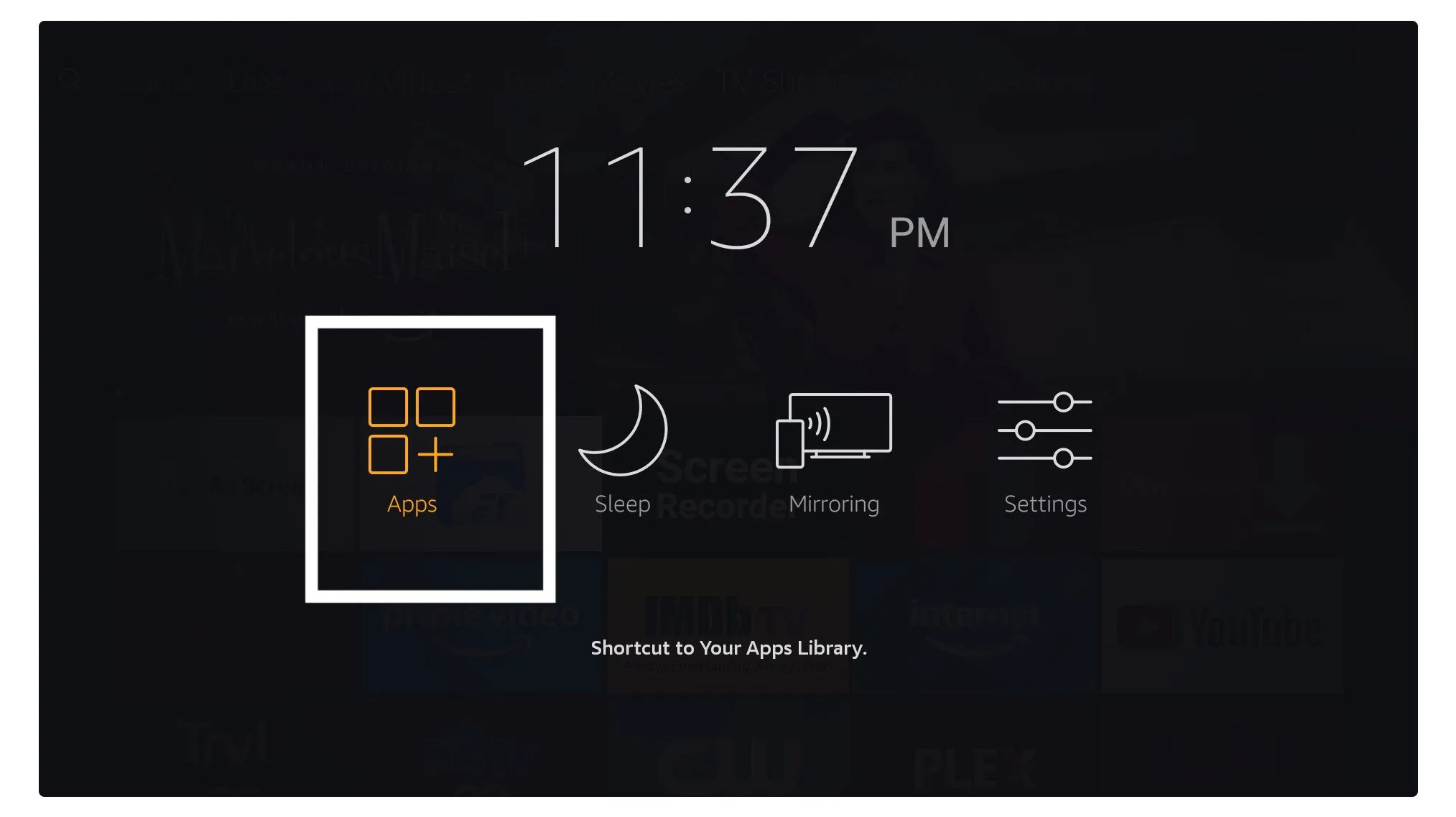
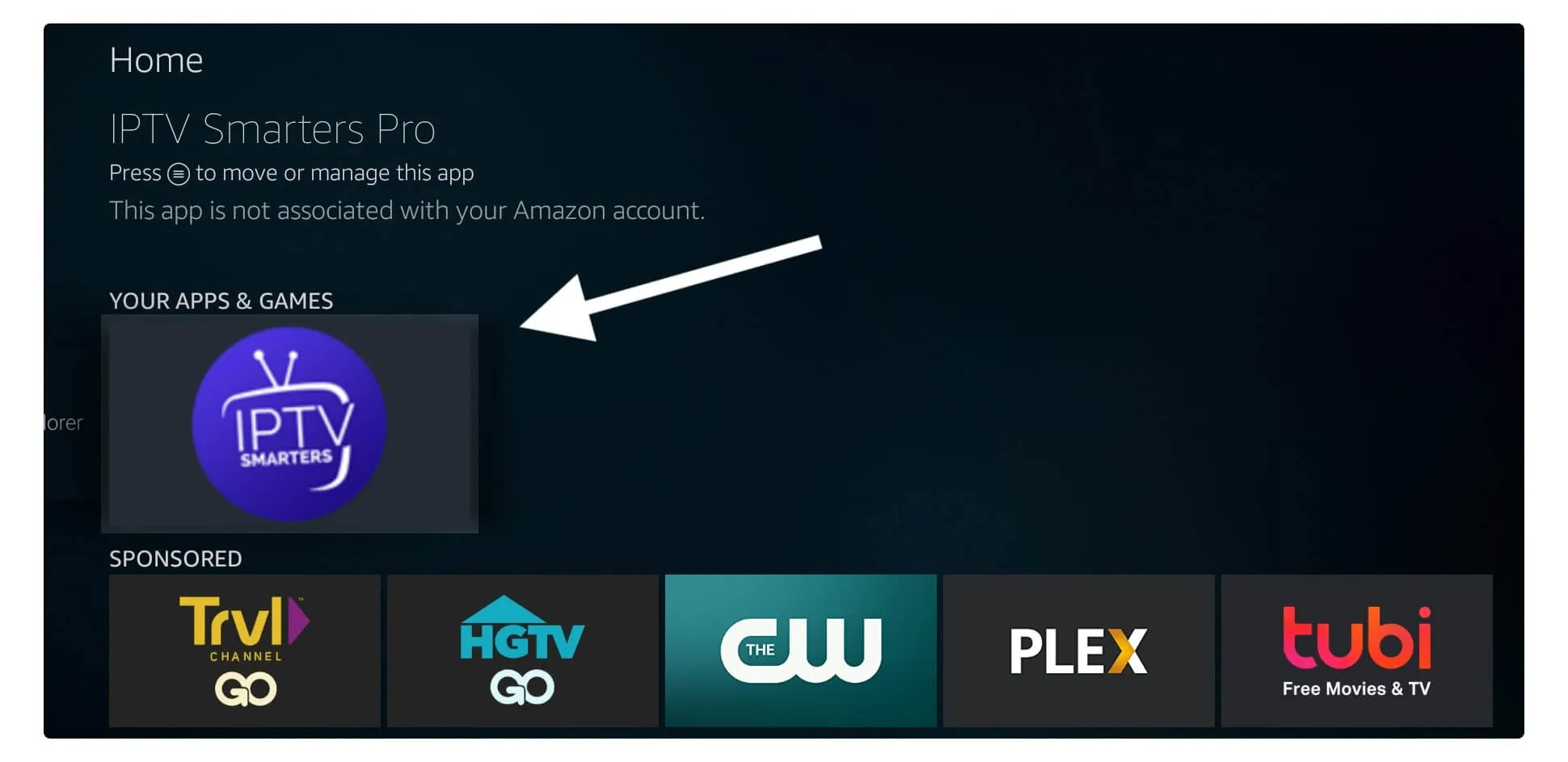
Scroll down and you will see the app appears at the bottom so press select to launch it.
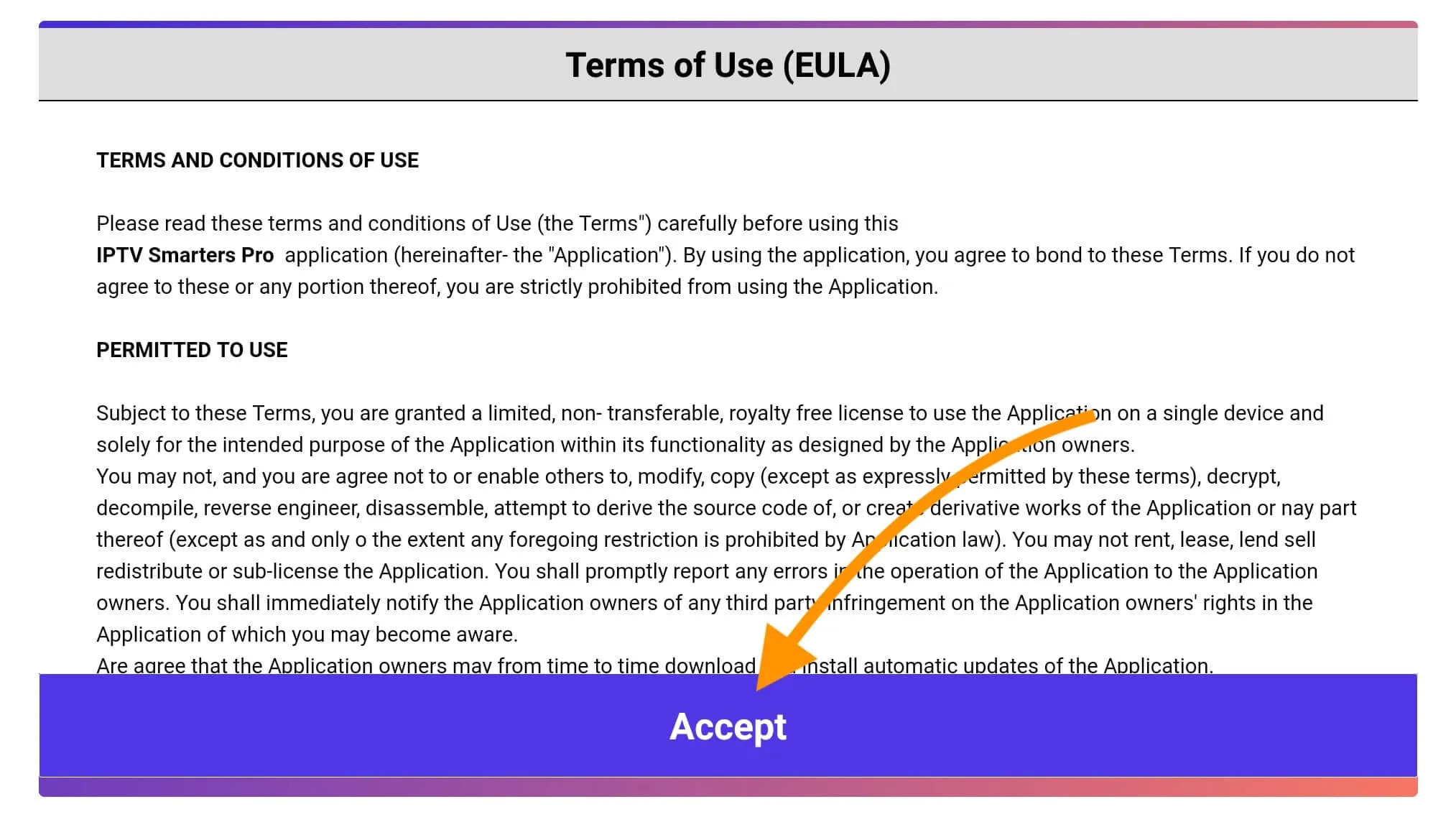
When launching it for the first time you will be asked to agree with their user agreement so simply click on the Accept button.
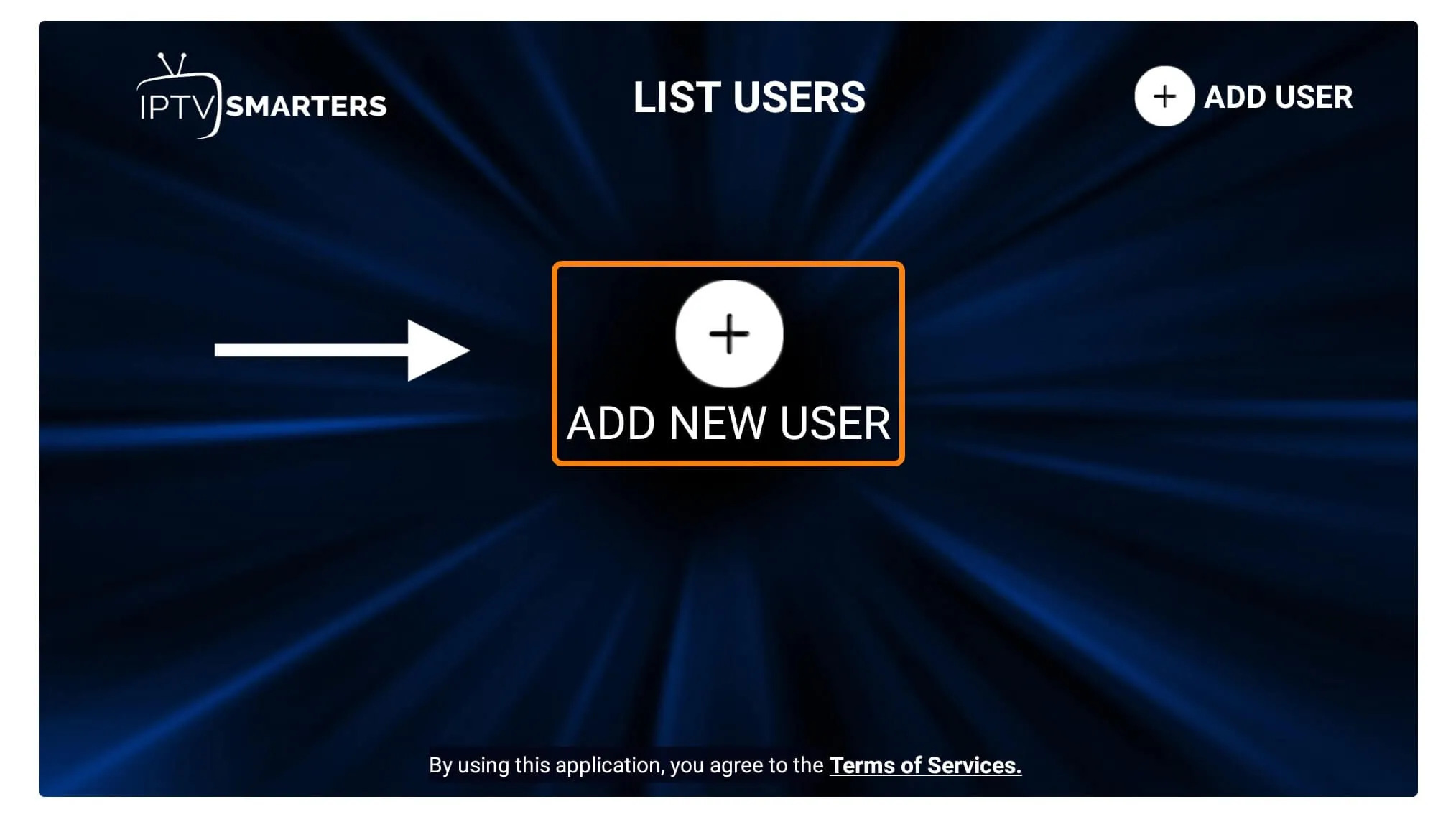
Once it’s done from the next you will be asked to Add a User so for this just click on the Add User button.
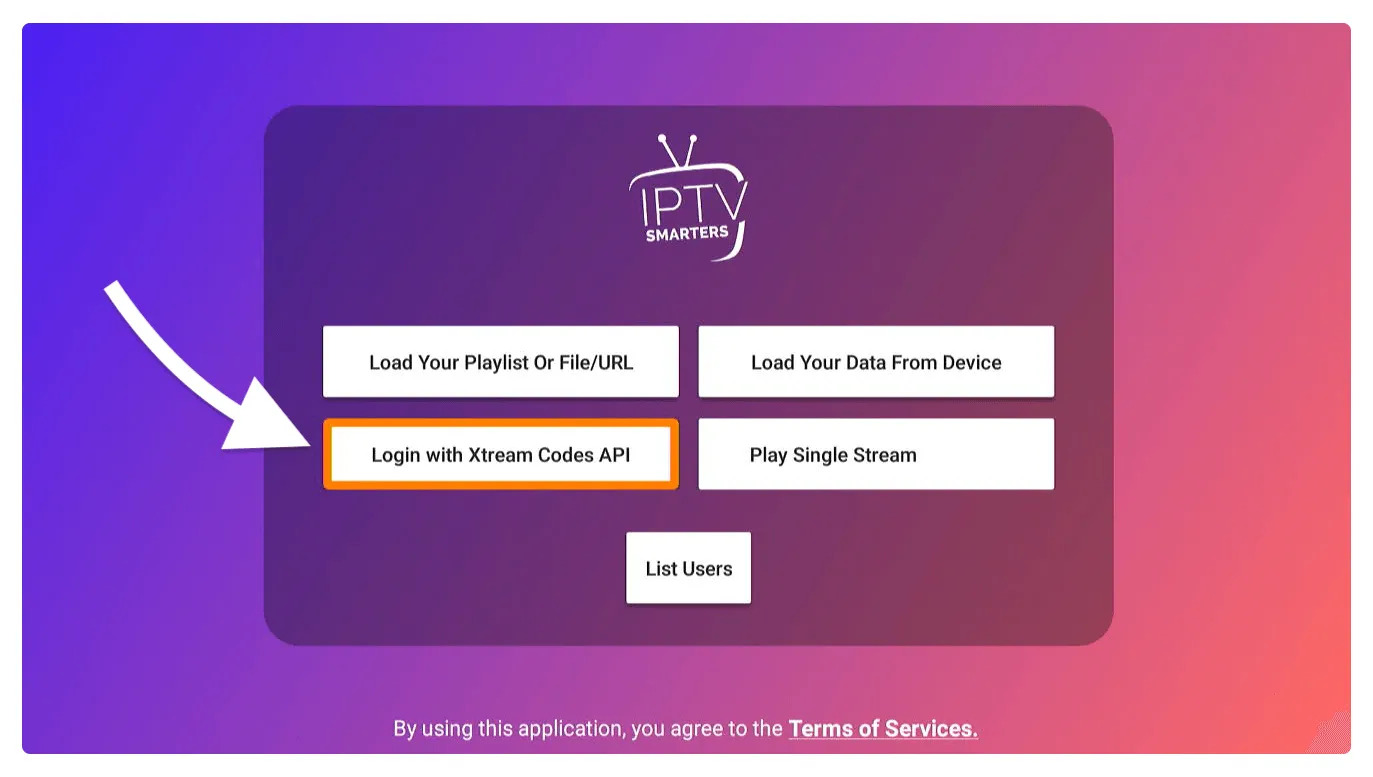
From the next screen, you will notice multiple options to Log Into the Smarters Pro. Now you need to choose Login with Xtreme Codes API which is the fast method.
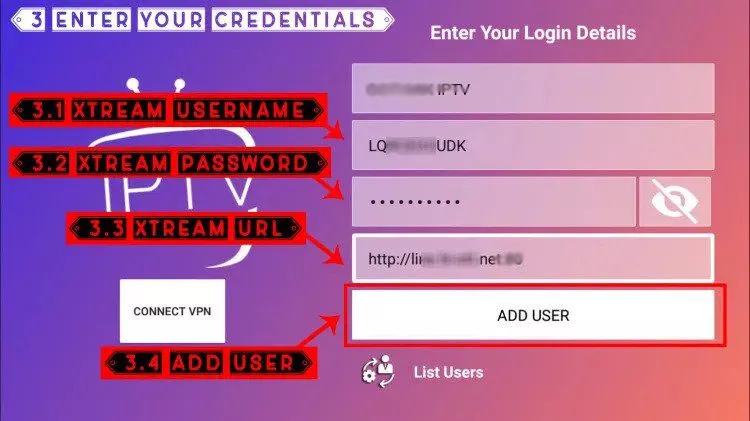
After that you will notice various fields appear there so you need to fill them as follow:
- Any Name: Type the name of your user.
- Username: Write the username provided by the seller.
- Password: It is also provided by the IPTV provider.
- URL: Just copy the portal URL from the provider and paste it here.
Once you filled every field just click on the Add User and it will create a new profile.
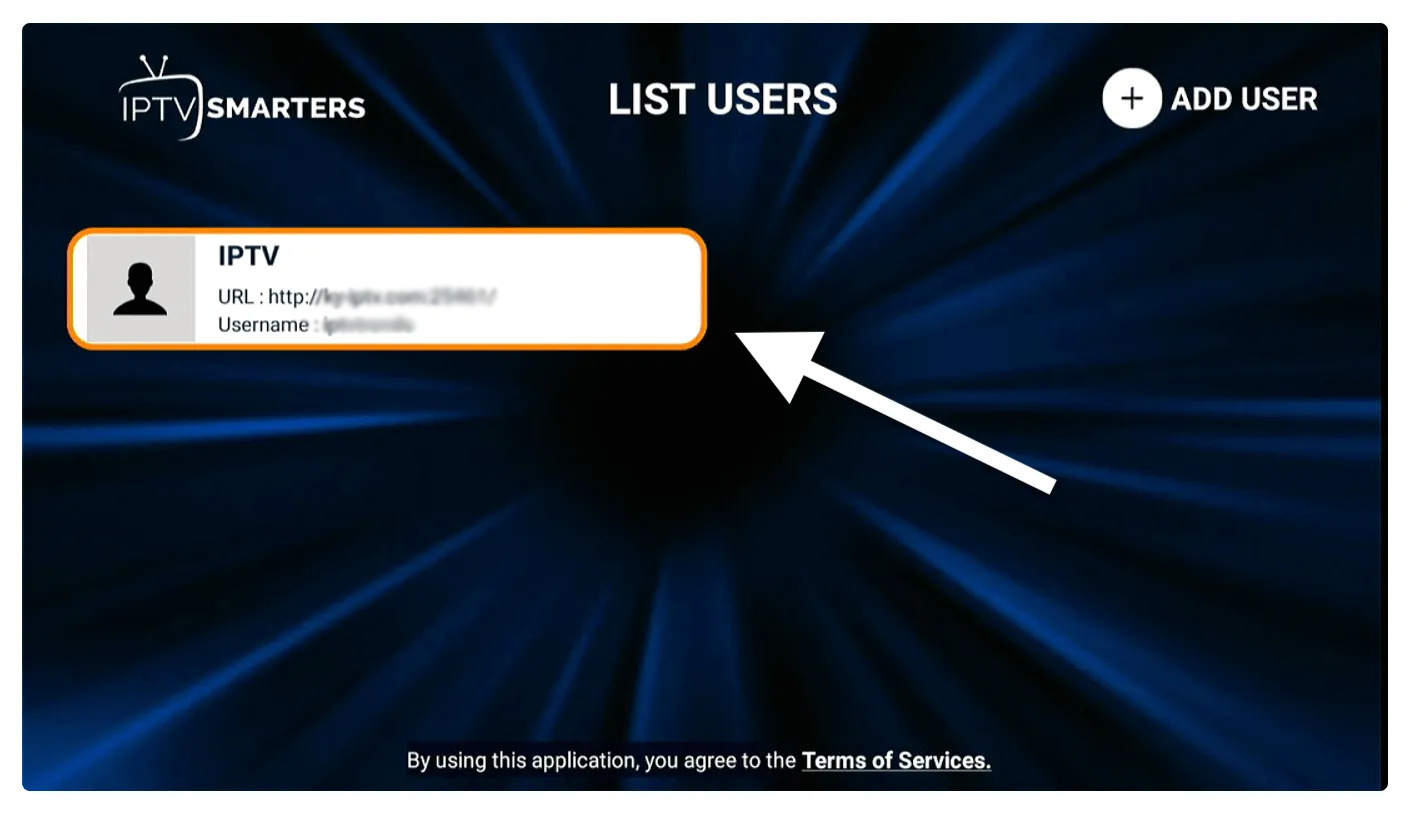
After that, you will notice the user is listed on your screen so click the User that you created.
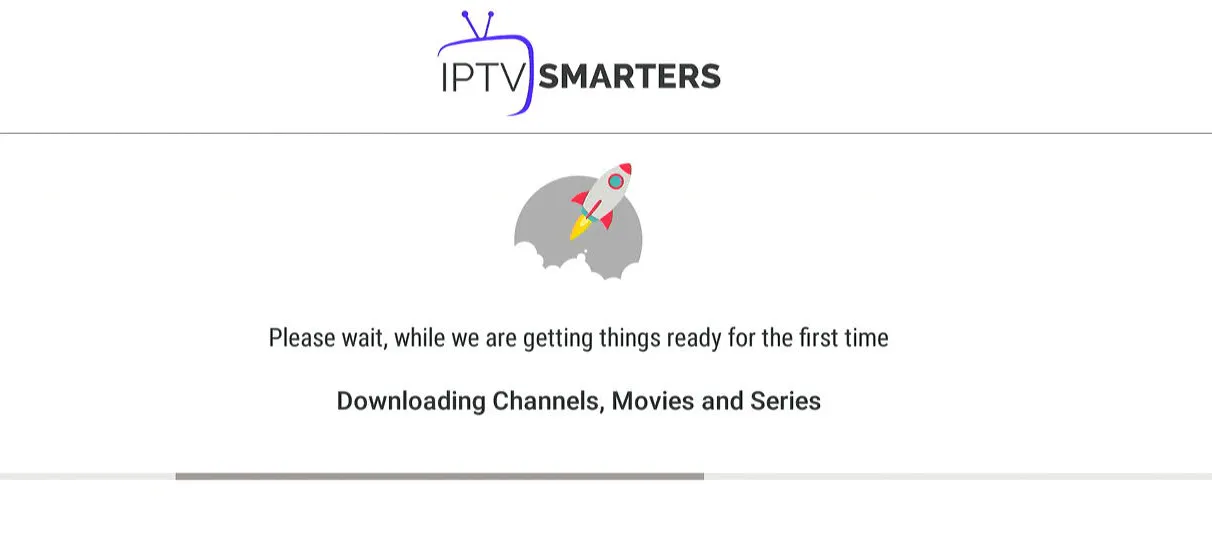
From the next screen, it shows Downloading Live Channels, Movies, and TV Shows so just wait for a while until it completes.
Once the downloading is completed a simple interface will appear with Live TV, Series, Movies, and other options. Now you just need to select any of these options and then it will Show Content available in that category
How to setup IBO Player Pro on Fire TV Stick
1. Open the Downloader app
On this screen, you need to click the URL textbox on the right side (make sure Home option in the left menu is selected) where it says ‘http://’
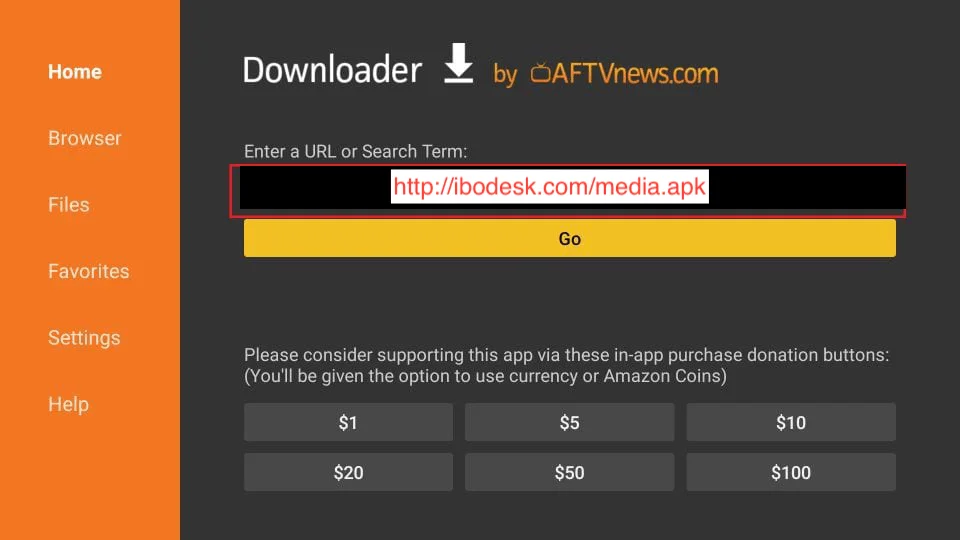
2. Go ahead and enter the following path on this window: http://ibodesk.com/media.apk ( Or, you can simply enter the downloader code: 532837 )
Click GO
3. Give it a minute or two until the IBO Player app is downloaded onto your FireStick device
4. When the download has completed, the Downloader app will run the APK file and the installation will start
Click Install
5. Wait for the installation to finish
6. Installation is concluded with the App installed notification
You may now choose to click OPEN and get started with IBO Player
I recommend choosing DONE so that you may first delete the APK file and save some space on the FireStick storage
7. If you clicked DONE above, you will be back on the Downloader interface
Click Delete
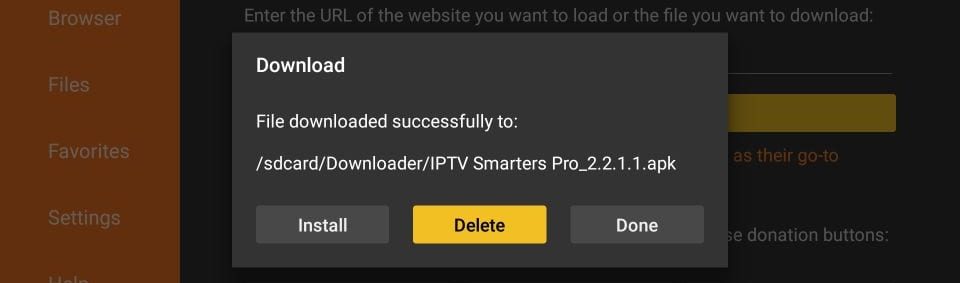
Great! You now have the IBO Player app on FireStick.
Launch IBO Player on Firestick either by going to Your Apps & Channels section or pressing & hold the Home button and then select Apps from the next screen.
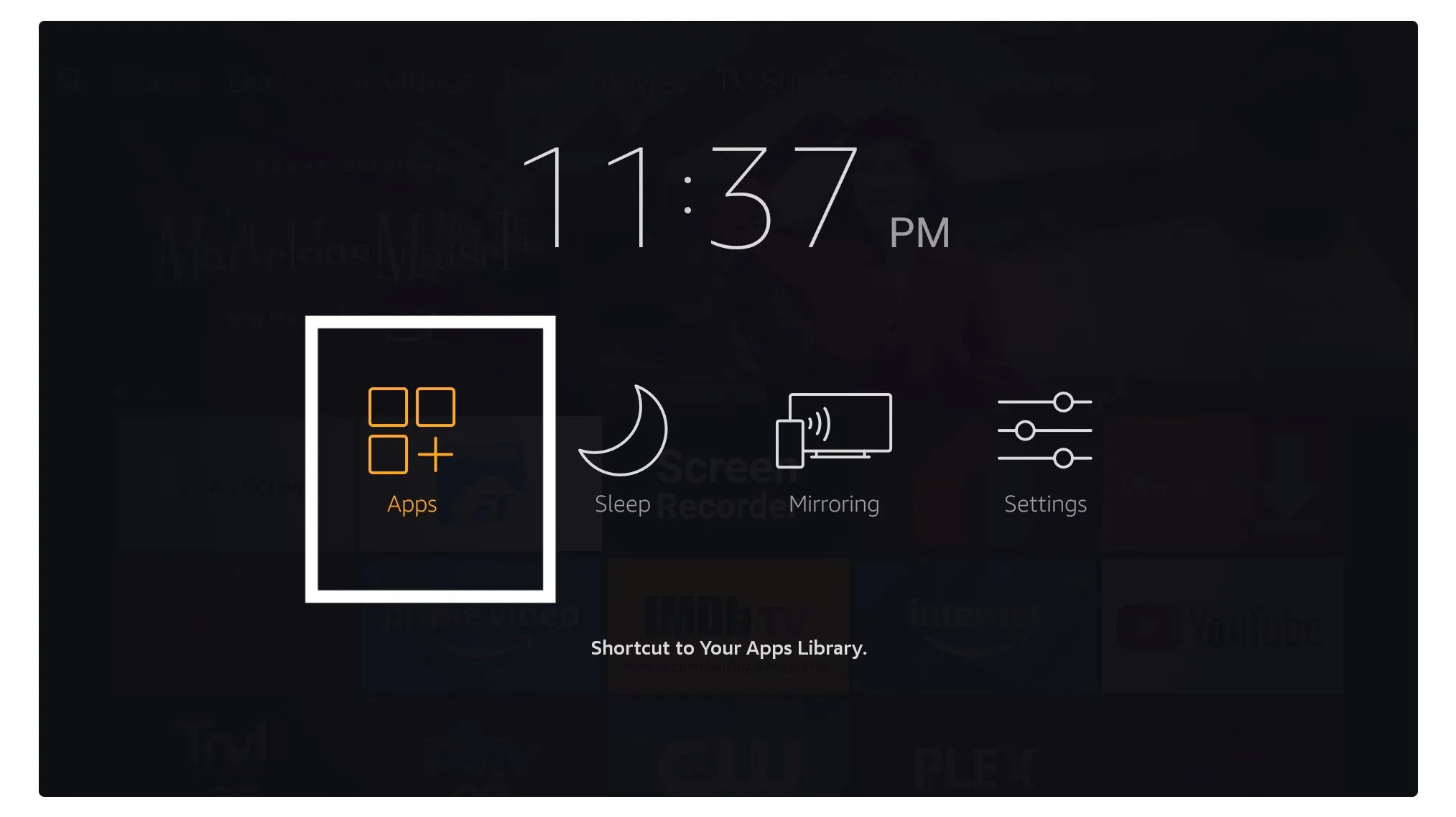
Scroll down and you will see the app appears at the bottom so press select to launch it.
Upon the initial launch of the IBO Player app, you will encounter a screen displaying the MAC address and DEVICE KEY. Utilizing these two pieces of information, you can easily proceed with the service installation.
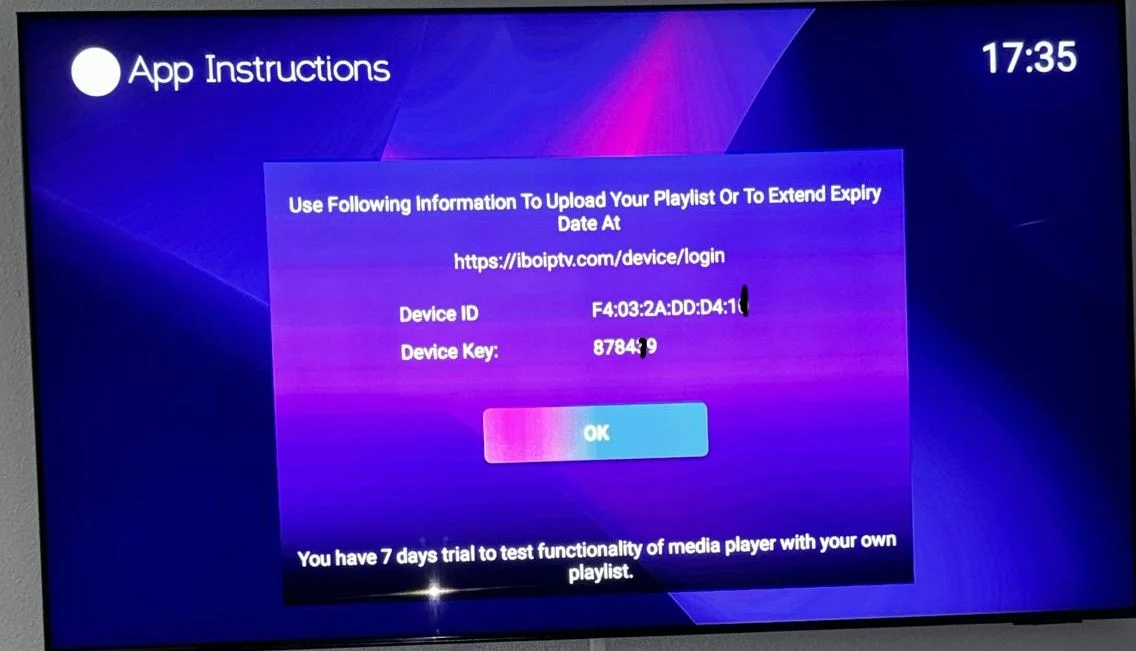
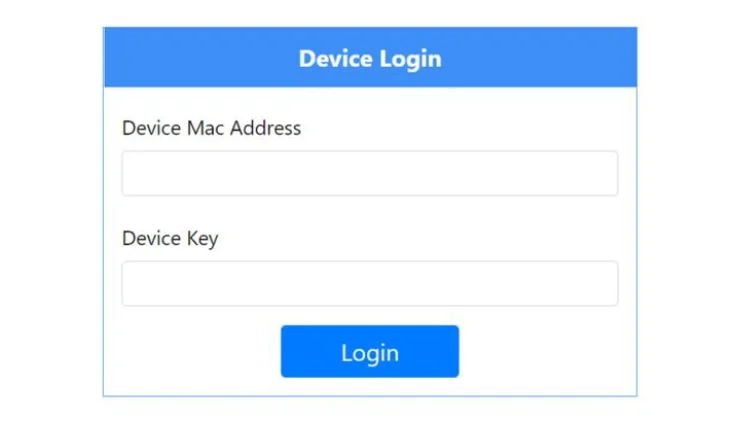
1. To add the service go to this link using your phone or your laptop: https://iboplayer.com/device/login
Enter the information displayed on the TV in the required fields (mac and Key) to connect to the application.
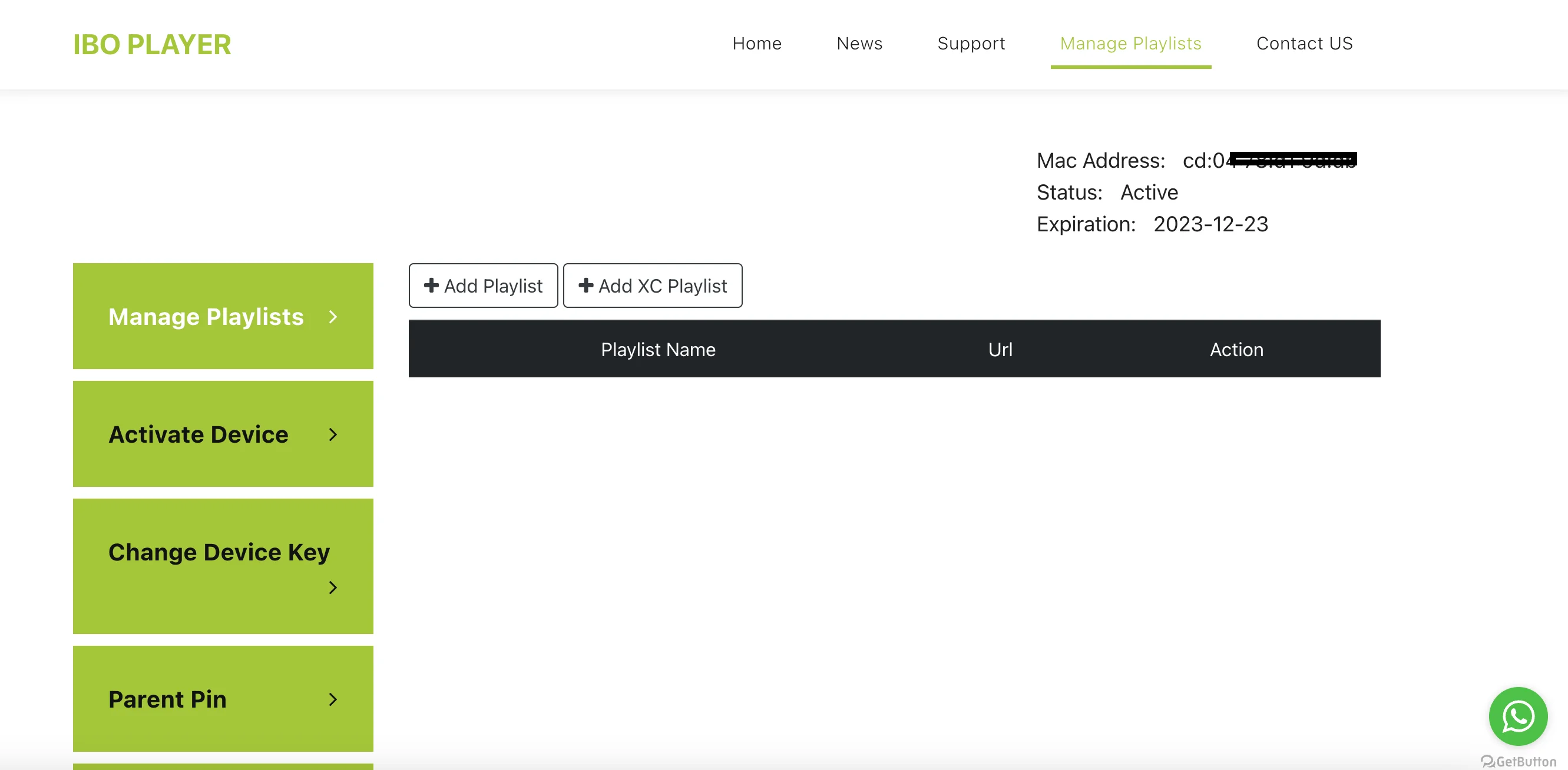
2. Once connected, you have two configuration methods, either with the m3u link (+ Add playlist) or with Xtream detail code (+ add XC playlist).
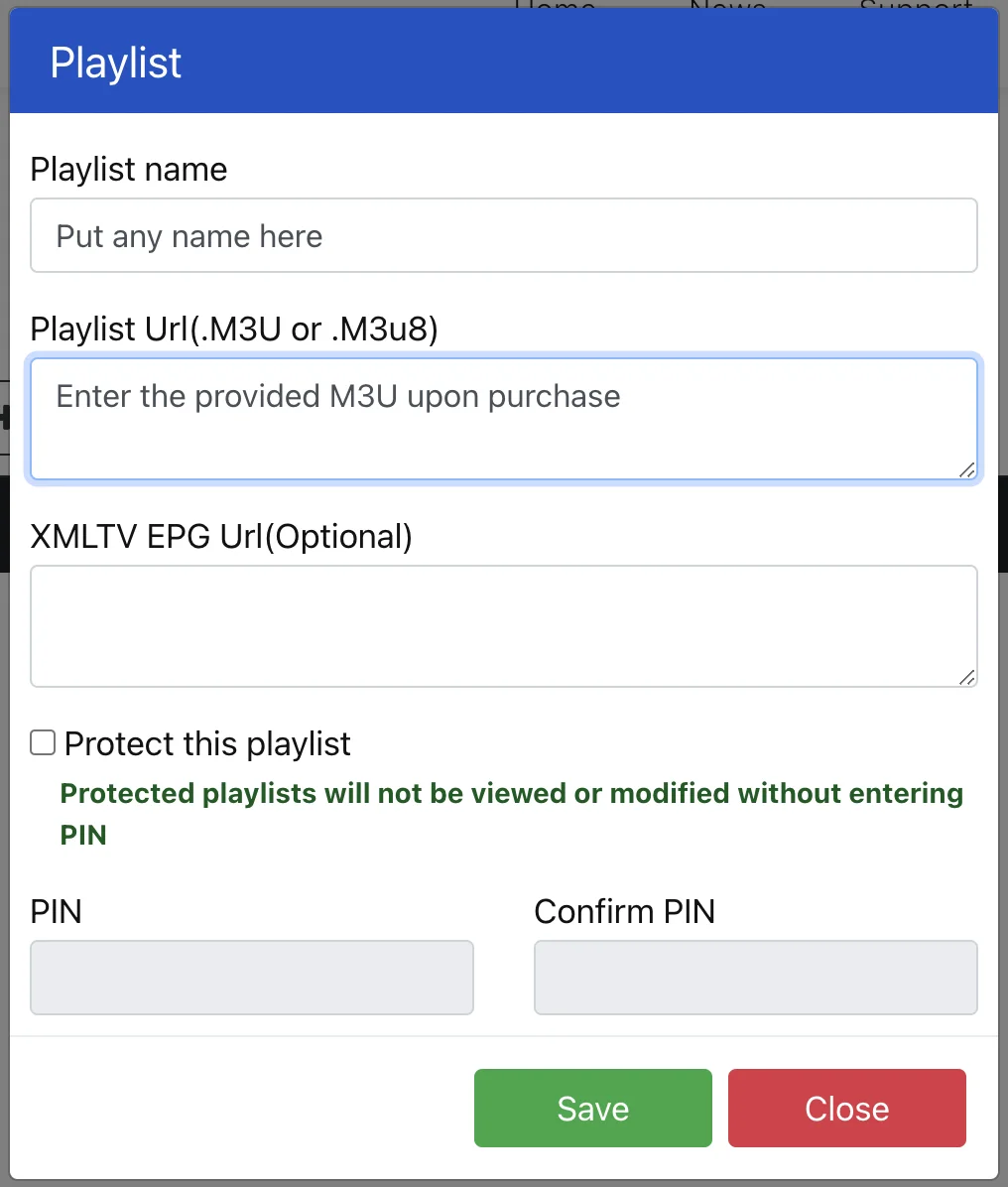
3. Click “Add Playlist” and insert the M3U link in the Playlist URL (provided via email after purchase).
As a final step, go back to your TV, restart the app, and the service will work for you.
FOR TIVIMATE
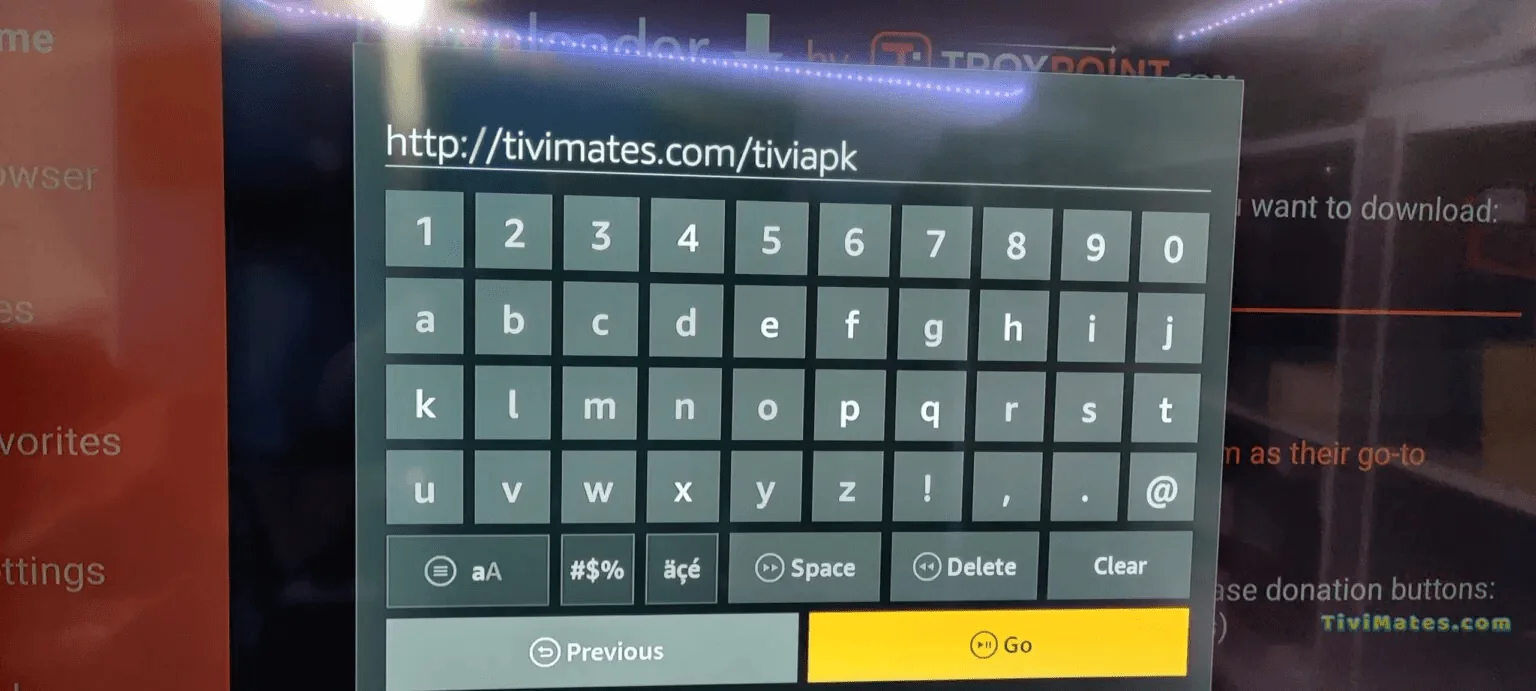
1. Type the following URL exactly as shown here: https://tivimates.com/tiviapk and click Go.
2. Wait for file to download. Wait for the file download to finish
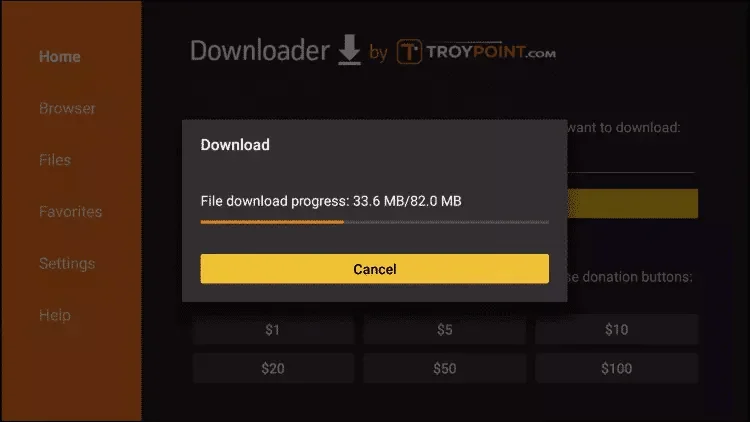
3. Click Install and once the installation is completed. You can open the app.
4. Click “Add Playlist” then choose “Xtream codes“
5. Enter the login details that we sent you via Whatsapp or Email or Chat
If you encounter any issues during the installation of the service, please feel free to contact us via email, website chat, or WhatsApp, and we will do our best to assist you.
Step 1: You can download IPTV Smarters from your TV store on Samsung, LG…
Step 2: Open the app once downloaded and Enter the login details.
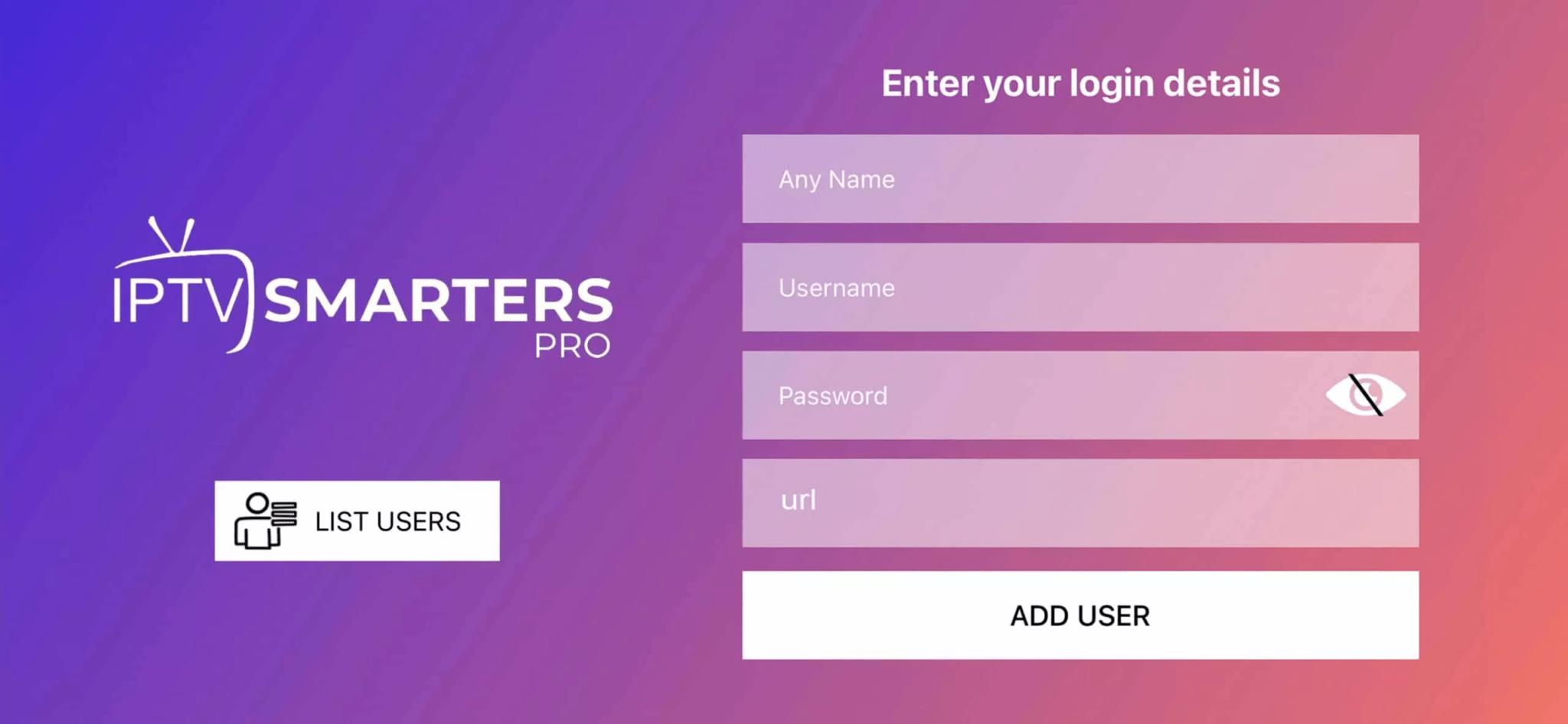
Step 3: Enter the login details that we have provided you after you get a subscription with us
P.S.: Sometimes the smart TV doesn’t support the IPTV Smarters app. In such cases, you may need to use another app, such as the iBo Player app.
How to setup IPTV on Android with IPTV Smarters Player
Step 1: Start by downloading IPTV Smarters app through this URL : https://www.iptvsmarters.com/smarters.apk
Step 2: Open the app once downloaded and Enter the login details.
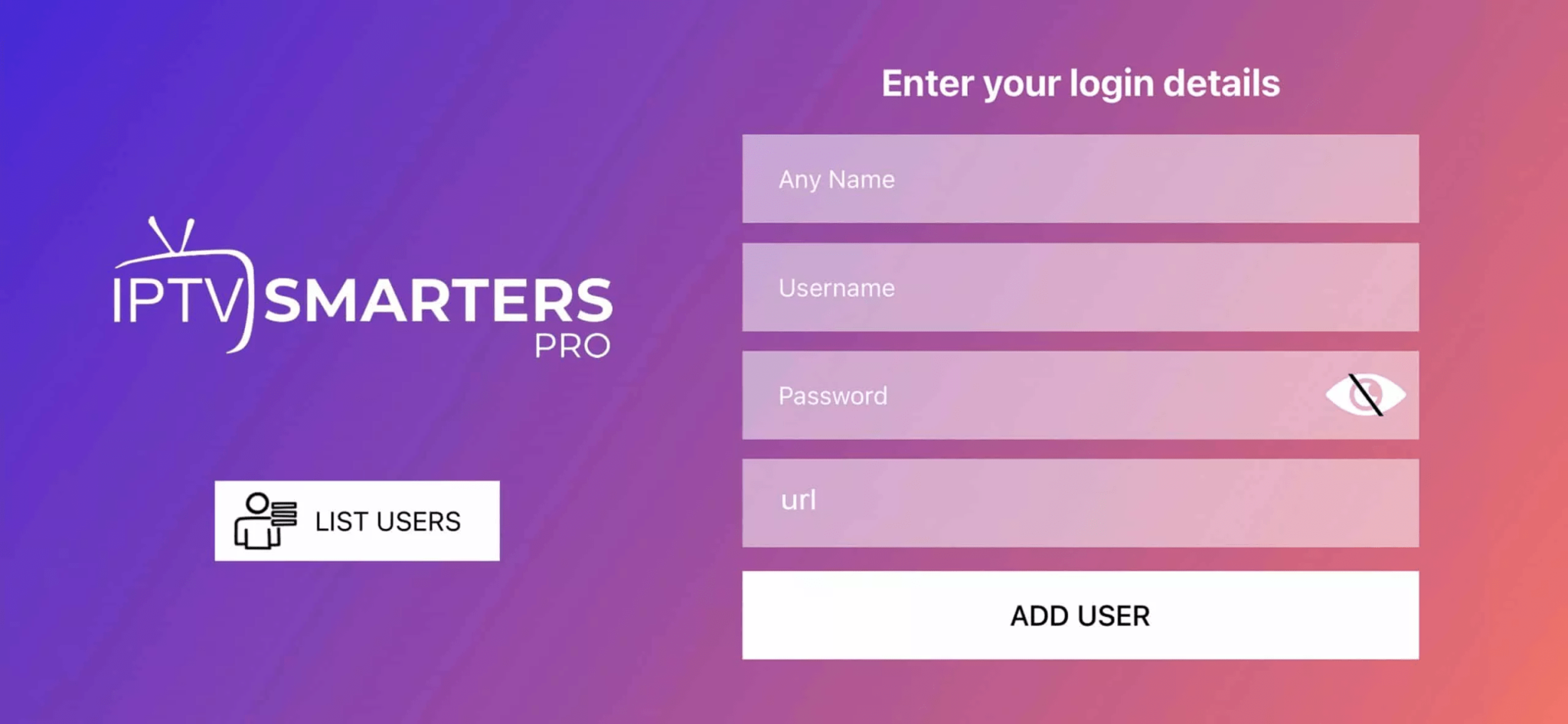
Step 3: Enter the login details that we have provided you after you get a subscription with us
Now Click on “ADD USER” to proceed to the next section.
Step 4: Wait some seconds.
Step 5: Now click on “Live TV” icon as depicted in the image via a red arrow.
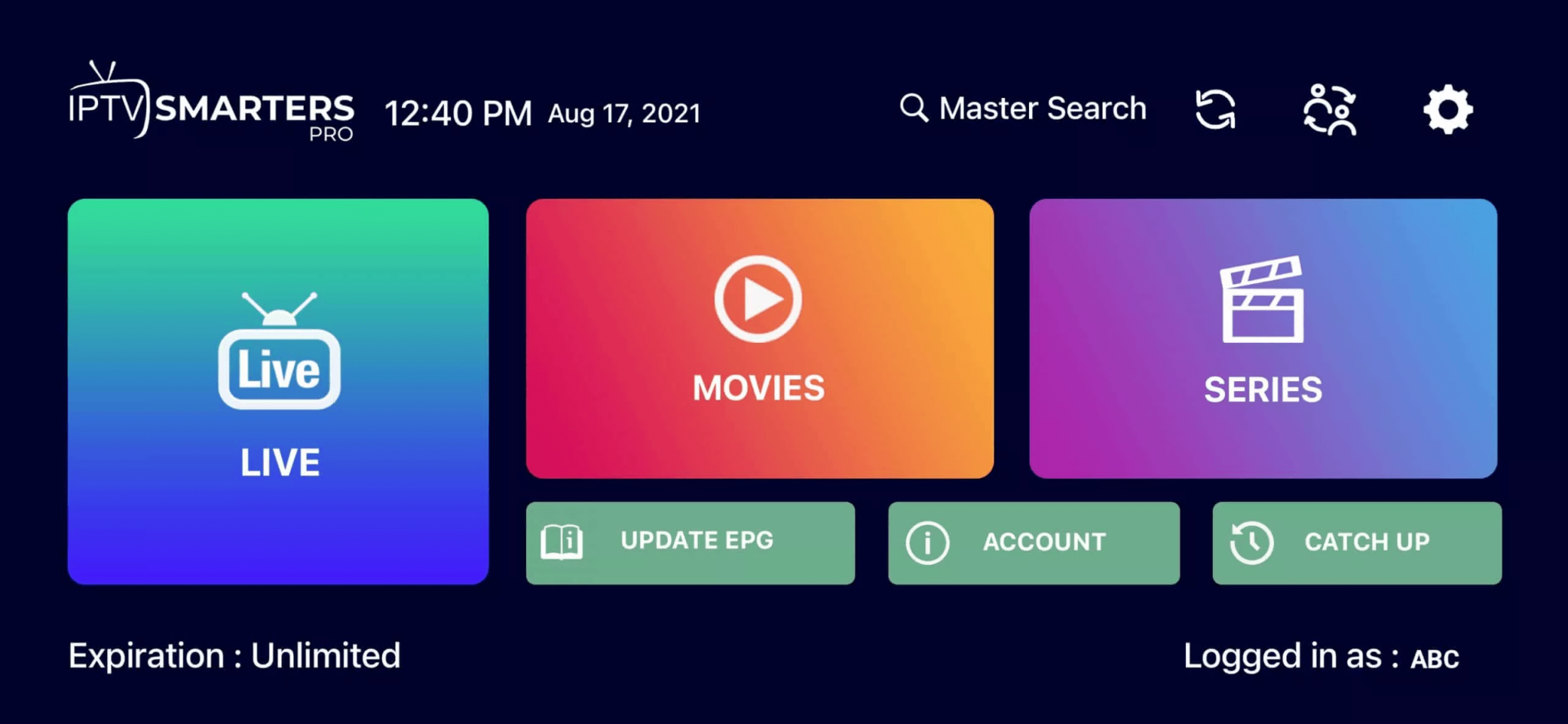
Step 6: Now you must select the channel group that you want to watch and proceed to the next section.
Step 7: Now you must click on the channel name and then double click on the small screen to turn into full screen as the final step.
Done
How To Setup IPTV On Apple/IOS With IPTV Smarters Player
Step 1: Start by downloading IPTV Smarters app from the Apple Store through this URL :
https://apps.apple.com/app/smarters-player-lite/id1628995509
or you can search for it on App store
install the app on your IOS device.
Step 2: Open the app once downloaded and Enter the login details.
Step 3: Enter the login details that we have provided you after you get a subscription with us
Now Click on “ADD USER” to proceed to the next section.
Step 4: Wait some seconds.
Step 5: Now click on “Live TV” icon as depicted in the image via a red arrow.
Step 6: Now you must select the channel group that you want to watch and proceed to the next section.
Step 7: Now you must click on the channel name and then double click on the small screen to turn into full screen as the final step.
Step 8: To add EPG no need to add any EPG url, Just click on “Install EPG” .
Done
Step 1:
Send us the MAC Address of your MAG via Whatsapp/Email/Live Chat/Order Page
Step 2:
After making the payment, we will send you the portal link
Windows Method:
Download IPTV Smarters app through this URL : https://www.iptvsmarters.com/download?download=windows_app
MAC Method:
Download IPTV Smarters app through this URL : https://www.iptvsmarters.com/download?download=mac